| 1. |
When attempting to login to Maybank2u.com.sg, why
do I keep getting the error message "Error: Unable
to load Java Applet. Please try again." ? |
|
As part of our commitment
to protecting our customers' information, Maybank uses
a Java applet to encrypt your password when you login
to Maybank2u.com.sg.
This is in addition to the 128-bit Secure Sockets Layer
(SSL) encryption technology that we use to protect your
information.
Hence, if Java is not installed and enabled in your PC,
you will not be able to login to Maybank2u.com.sg. |
| |
|
| 2. |
How do I know if I
have Java installed in my PC? |
| |
To see if you have properly installed Java in your
PC, click on www.maybank2u.com.sg/html/ib_detectJVM.html.
You will see the message "Applet Status - Successful"
if Java is installed in your PC.
If not, the message "Java not running"
will be displayed instead.
Click on "Click here to Enable/Install Java"
for the steps required to install Java on your PC.
|
| |
|
| 3. |
How do I check and enable Java in my PC? |
| |
For Netscape
4.72 and higher:
- At the Netscape Menu Bar, click on Edit
- Select Preferences
- In the category field, click on Advanced
- Ensure that the options Enable Java
and Enable Java Script are checked
- Click OK and restart the browser
For IE 5.0 and higher: |
- At the Internet Explore Menu Bar, click
on Tools
- Select Internet Options
- Select the Advanced tab
- Scroll down and look for Microsoft VM
or Java (Sun)
- Ensure that all the options are checked
- Click OK and restart the browser
|
For Windows XP (IE 6.0), you
will need to download and install the Java plug-in.
If the problem persists, use the following method:
- Go to http://java.sun.com/j2se/1.3/download.html
- Click on the download for Windows/Linux/Solaris
SPARC/Solaris x86 (JRE version)
- Click Accept for the License Agreement
- Click on Windows (U.S. English), English
(j2re-1_3_1_13-windows-i586.exe, 5.25 MB)
- Download the file and save it in a folder
of your choice in your PC
- Follow the on-screen instructions to install
the Java plug-in
- Restart computer and open the Internet Explorer
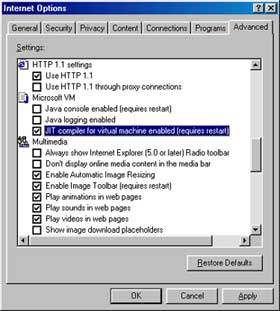
- Click on Tools and select Internet
Options - Advanced, and follow the setting
for Java (Sun) and Microsoft VM
as indicated in the picture.
- Check on "JIT compiler for virtual
machine enabled (requires restart)"
- To clear your cache, go to Tools - Internet
Options - General, and click on Delete
Files under Temporary Internet Files
- Restart the browser and try to login to Maybank2u.com.sg
again
|
|
| |
|
| 4. |
What should I do if
I still have problems logging into Maybank2u.com.sg? |
| |
You can call us at 1800-MAYBANK
(1800-629-2265). |



